This guide is intended for system administrators configuring secure WinRM HTTPS listeners in managed environments.
WinRM over HTTPS with a Self-Signed Certificate #
What this script does:
- Checks if script was executed as Administrator
- Configures the network adapters default profile to Private (This is required)
- Enables Windows PowerShell Remoting
- Starts WinRM Service and enable autostart
- Prepares WinRM for communication over HTTPS
- Gets the current hostname of the machine
- Checks if certificate with the hostname already exists
- If the certificate does not exist or is expired, a new one is created
- It removes any existing HTTPS listeners in the WinRM Service
- It creates a new HTTPS listener with the generated certificate allowing all IP-Addresses
- Binds the HTTPS listener to all network interfaces (all IP addresses) on this machine
- Checks firewall rule and creates missing Windows Remote Management (HTTPS-In)
- Outputs certificate information and expiation date
# Configures Windows PowerShell Remoting and WinRM for ServerEngine management
# With Self-Signed Certificate works with IP-Address and DNS Name
#----------------------------------------------------------------
# Requires Administrator previlegues

$isadm = ([Security.Principal.WindowsPrincipal][Security.Principal.WindowsIdentity]::GetCurrent()).IsInRole([Security.Principal.WindowsBuiltInRole]::Administrator)
if (-not $isadm) {
    Write-Host "<WRITE-LOG = ""*Please run this script as Administrator.*"">"
    Write-Host "<WRITE-LOG = ""*If this was a remote execution please provide Administrator credentials.*"">"
    Write-Error "Warning: Not running as Administrator."
}

# Step 1 - Prepare Network Adapters
Get-NetConnectionProfile | Set-NetConnectionProfile -NetworkCategory Private 2>$null

# Step 2 - Enable Windows PowerShell Remoting
Enable-PSRemoting -Force

# Step 3 - Configure WinRM SSL with Self-Signed Certificate

# Start WinRM service if not running
if ((Get-Service WinRM).Status -ne 'Running') {
    Start-Service WinRM -ErrorAction Stop
    Set-Service WinRM -StartupType Automatic -ErrorAction Stop
}

# Configure HTTPS listener
winrm quickconfig -transport:https -force 2>$null

# Check for existing certificate
$hostname = hostname
$existingCert = Get-ChildItem "Cert:\LocalMachine\My" |
    Where-Object {
        $_.Subject -eq "CN=$hostname" -and
        $_.Issuer -eq "CN=$hostname" -and
        $_.HasPrivateKey -eq $true
    } | Sort-Object NotAfter -Descending | Select-Object -First 1

# Create new certificate only if needed
if ($existingCert) {
    # Check if certificate is expired or expiring soon (within 30 days)
    $daysUntilExpiry = ($existingCert.NotAfter - (Get-Date)).Days

    if ($daysUntilExpiry -le 0) {
        Write-Host "Existing certificate expired $([Math]::Abs($daysUntilExpiry)) days ago. Creating new certificate..."
        $cert = New-SelfSignedCertificate -DnsName $hostname -CertStoreLocation "Cert:\LocalMachine\My" -KeySpec KeyExchange -ErrorAction Stop
    }
    elseif ($daysUntilExpiry -le 30) {
        Write-Host "Existing certificate expires in $daysUntilExpiry days. Creating new certificate..."
        $cert = New-SelfSignedCertificate -DnsName $hostname -CertStoreLocation "Cert:\LocalMachine\My" -KeySpec KeyExchange -ErrorAction Stop
    }
    else {
        Write-Host "Using existing valid certificate (expires in $daysUntilExpiry days)"
        $cert = $existingCert
    }
} else {
    Write-Output "No existing certificate found. Creating new certificate..."
    $cert = New-SelfSignedCertificate -DnsName $hostname -CertStoreLocation "Cert:\LocalMachine\My" -KeySpec KeyExchange -ErrorAction Stop
}

# Remove any existing HTTPS listeners
winrm delete winrm/config/Listener?Address=*+Transport=HTTPS 2>$null

# Create HTTPS listener with the certificate
New-Item -Path "WSMan:\localhost\Listener" -Transport HTTPS -Address * -CertificateThumbprint $cert.Thumbprint -Force -ErrorAction Stop

# Configure firewall (skip if rule already exists)
if (-not (Get-NetFirewallRule -Name "WINRM-HTTPS-In-TCP" -ErrorAction SilentlyContinue)) {
    New-NetFirewallRule -Name "WINRM-HTTPS-In-TCP" -DisplayName "Windows Remote Management (HTTPS-In)" -Enabled True -Direction Inbound -Protocol TCP -LocalPort 5986 -Action Allow -ErrorAction Stop
}

Write-Host "WinRM HTTPS successfully configured"
Write-Host "Certificate Thumbprint: $($cert.Thumbprint)"
Write-Host "Certificate Expires: $($cert.NotAfter.ToString('yyyy-MM-dd'))"
Write-Host "<WRITE-LOG = ""*PowerShell Remoting successfully configured.*"">"
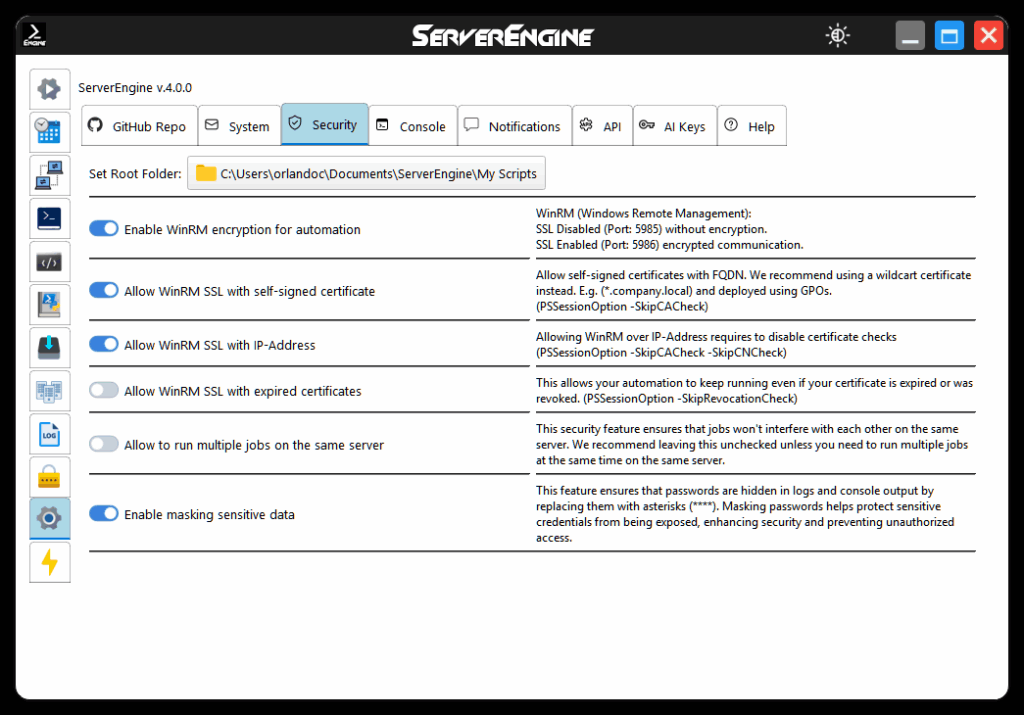
Important: Check your ServerEngine Security Setting #
- Enable: Enable WinRM encryption for automation
- Enable: Allow WinRM SSL with self-signed certificate
- Enable: Allow WinRM SSL with IP-Address
- Disable: Allow WinRM SSL with expired certificates
This is a secure method for remotely executing PowerShell scripts using Windows Remote Management (WinRM), with the flexibility to use both IP addresses and DNS names.
WinRM over HTTPS with a Custom Domain Certificate #
What this script does:
- Checks if script was executed as Administrator
- Configures the network adapters default profile to Private (This is required)
- Enables Windows PowerShell Remoting
- Starts WinRM Service and enable autostart
- Prepares WinRM for communication over HTTPS
- Gets the current hostname of the machine
- Loads existing domain certificate
- If the certificate does not exist or is expired, a new one is created
- It removes any existing HTTPS listeners in the WinRM Service
- It creates a new HTTPS listener with the generated certificate allowing all IP-Addresses
- Binds the HTTPS listener to all network interfaces (all IP addresses) on this machine
- Checks firewall rule and creates missing Windows Remote Management (HTTPS-In)
- Outputs certificate information and expiation date
Important Note: Make sure you already have deployed your wildcard domain certificate to this host! You must deploy to “Local Machine\Personal” Store
It’s better to do this manually for security reasons no one wants password floating around in scripts or in the console.
If you choose not to perform it manually, you may use the following script:
# Deploy-Cert.ps1
# This script imports a PFX certificate into the Local Machine's Personal store.

# --- CONFIGURE THESE VARIABLES ---
$CertPath = "\\yourdomain.com\SYSVOL\yourdomain.com\scripts\certs\yourcert.pfx"
$CertPassword = ConvertTo-SecureString -String "YourStrongPassword" -Force -AsPlainText
# --- END CONFIGURATION ---

# Check if certificate already exists (optional, prevents re-importing on every boot)
$ExistingCert = Get-ChildItem -Path Cert:\LocalMachine\My | Where-Object { $_.Subject -like "*.CForce-IT.network*" }
if (-not $ExistingCert) {
    try {
        Write-Host "Importing certificate to Local Machine\Personal store..."
        Import-PfxCertificate -FilePath $CertPath -CertStoreLocation Cert:\LocalMachine\My -Password $CertPassword -Exportable
        Write-Host "Certificate imported successfully."
    }
    catch {
        Write-Error "Failed to import certificate: $_"
    }
} else {
    Write-Host "Certificate already exists. Skipping import."
}
Make also sure to replace the ($hostname = “*.yourcompany.com”) with your company’s wildcard domain certificate
# Configures Windows PowerShell Remoting and WinRM for ServerEngine management
# With Custom Domain Certificate works only with DNS Name and valid Certificate Authority (CA) association
#----------------------------------------------------------------
# Requires Administrator previlegues

$isadm = ([Security.Principal.WindowsPrincipal][Security.Principal.WindowsIdentity]::GetCurrent()).IsInRole([Security.Principal.WindowsBuiltInRole]::Administrator)
if (-not $isadm) {
    Write-Host "<WRITE-LOG = ""*Please run this script as Administrator.*"">"
    Write-Host "<WRITE-LOG = ""*If this was a remote execution please provide Administrator credentials.*"">"
    Write-Error "Warning: Not running as Administrator."
}

# Step 1 - Prepare Network Adapters
Get-NetConnectionProfile | Set-NetConnectionProfile -NetworkCategory Private 2>$null

# Step 2 - Enable Windows PowerShell Remoting
Enable-PSRemoting -Force

# Step 3 - Configure WinRM SSL with Self-Signed Certificate

# Start WinRM service if not running
if ((Get-Service WinRM).Status -ne 'Running') {
    Start-Service WinRM -ErrorAction Stop
    Set-Service WinRM -StartupType Automatic -ErrorAction Stop
}

# Configure HTTPS listener
winrm quickconfig -transport:https -force 2>$null

# Load existing domain certificate
$hostname = "*.yourcompany.com" #REPLACE THIS WITH YOUR WILDCARD DOMAIN CERTIFICATE

$existingCert = Get-ChildItem "Cert:\LocalMachine\My" |
    Where-Object {
        $_.Subject -like "CN=$hostname*" -and  # Notice the * AFTER, not before
        $_.HasPrivateKey -eq $true
    } | Sort-Object NotBefore -Descending | Select-Object -First 1


# Create new certificate only if needed
if ($existingCert) {
    # Check if certificate is expired or expiring soon (within 30 days)
    $daysUntilExpiry = ($existingCert.NotAfter - (Get-Date)).Days

    if ($daysUntilExpiry -le 0) {
        Write-Warning "Existing certificate expired $([Math]::Abs($daysUntilExpiry)) days ago. Creating new certificate..."
    }
    elseif ($daysUntilExpiry -le 30) {
        Write-Warning "Existing certificate expires in $daysUntilExpiry days. Creating new certificate..."
    }
    else {
        Write-Host "Certificate found! (expires in $daysUntilExpiry days)"
        $cert = $existingCert
    }
} else {
    Write-Error "No existing certificate found. $hostname does not exist!"

}

# Remove any existing HTTPS listeners
winrm delete winrm/config/Listener?Address=*+Transport=HTTPS 2>$null

# Create HTTPS listener with the certificate
New-Item -Path "WSMan:\localhost\Listener" -Transport HTTPS -Address * -CertificateThumbprint $cert.Thumbprint -Force -ErrorAction Stop

# Configure firewall (skip if rule already exists)
if (-not (Get-NetFirewallRule -Name "WINRM-HTTPS-In-TCP" -ErrorAction SilentlyContinue)) {
    New-NetFirewallRule -Name "WINRM-HTTPS-In-TCP" -DisplayName "Windows Remote Management (HTTPS-In)" -Enabled True -Direction Inbound -Protocol TCP -LocalPort 5986 -Action Allow -ErrorAction Stop
}

Write-Host "WinRM HTTPS successfully configured"
Write-Host "Certificate Thumbprint: $($cert.Thumbprint)"
Write-Host "Certificate Expires: $($cert.NotAfter.ToString('yyyy-MM-dd'))"
Write-Host "<WRITE-LOG = ""*PowerShell Remoting successfully configured.*"">"
Your expected output should look something like this:
WinRM service is already running on this machine.
Certificate found! (expires in 352 days)


   WSManConfig: Microsoft.WSMan.Management\WSMan::localhost\Listener

Type            Keys                                Name
----            ----                                ----
Container       {Transport=HTTPS, Address=*}        Listener_1305953032
WinRM HTTPS successfully configured
Certificate Thumbprint: 108E6F2946496C85386925B5B652588ABD3D06CB
Certificate Expires: 2027-02-05
<WRITE-LOG = "*PowerShell Remoting successfully configured.*">
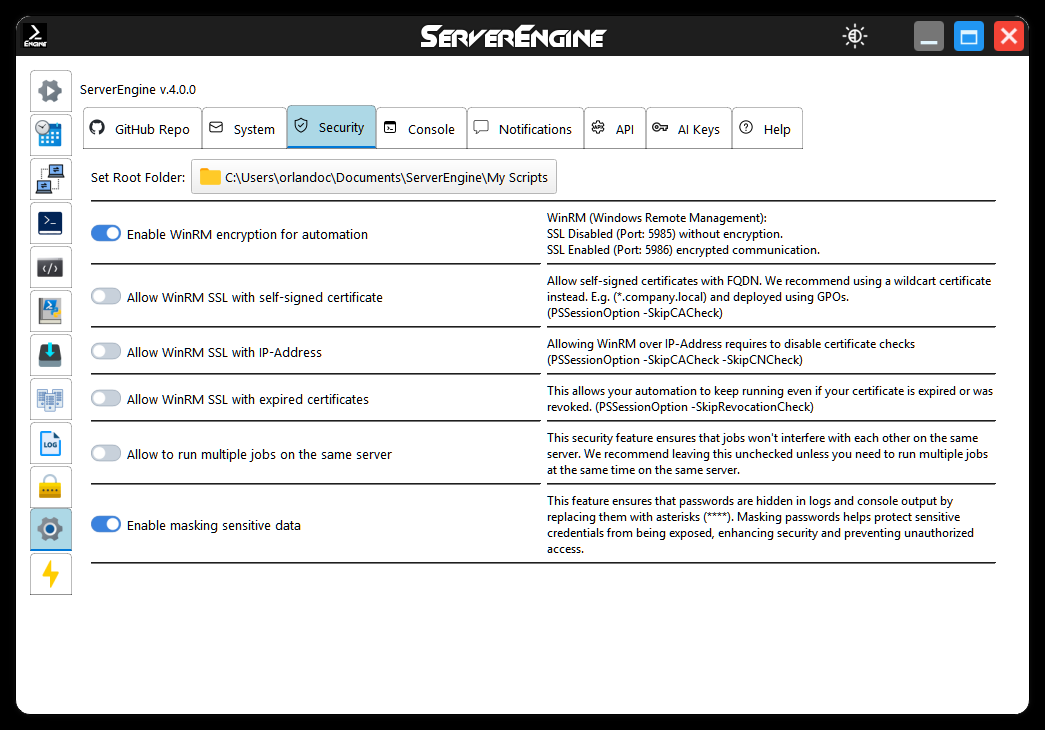
Important: Check your ServerEngine Security Setting #
- Enable: Enable WinRM encryption for automation
- Disable: Allow WinRM SSL with self-signed certificate
- Disable: Allow WinRM SSL with IP-Address
- Disable: Allow WinRM SSL with expired certificates
This the most secure way to remotely execute PowerShell scripts using Windows Remote Management (WinRM)
Now you should be able to run automated scripts remotely, fully encrypted and secure, using WinRM over HTTPS within your company’s domain infrastructure.